---
title: How do I change my index location?
description: Changing the location of your X1 Search Index.
---
[Skip to content](https://x1support.x1.com/knowledge/how-do-i-change-my-index-location#main-content)
English
Show submenu for translations
[Customer portal](https://x1support.x1.com/tickets-view?hsLang=en)
![X1 logo.png\]](https://x1support.x1.com/hs-fs/hubfs/X1%20logo.png?height=40&name=X1%20logo.png)
- [Default HubSpot Blog](https://blog.x1.com/blog)
Open main navigation
Close main navigation
- [Default HubSpot Blog](https://blog.x1.com/blog)
- English
Show submenu for translations
- [Customer portal](https://x1support.x1.com/tickets-view)
- [Go to x1.com](https://www.x1.com/)
[Go to x1.com](https://www.x1.com/)
Welcome to X1 support. How can we help you?
- There are no suggestions because the search field is empty.
1. [Help Center](https://x1support.x1.com/knowledge?hsLang=en)
2. [X1 Search](https://x1support.x1.com/knowledge/x1-search?hsLang=en)
3. [F.A.Q.](https://x1support.x1.com/knowledge/x1-search?hsLang=en#f-a-q)
# How do I change my index location?
## Changing the location of your X1 Search Index.
### By default, X1 Search places index files in the X1 Data Directory in the following locations depending on your Operating System:
*Please note: Currently we support storing the X1 Search index on the local drive*.
**Windows 10, 7, and Vista:** C:\\Users\\username\\AppData\\Local\\X1Search
If you want to change the location of your Index File, please do the following:
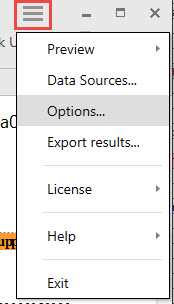
1. Select Menu\>Options
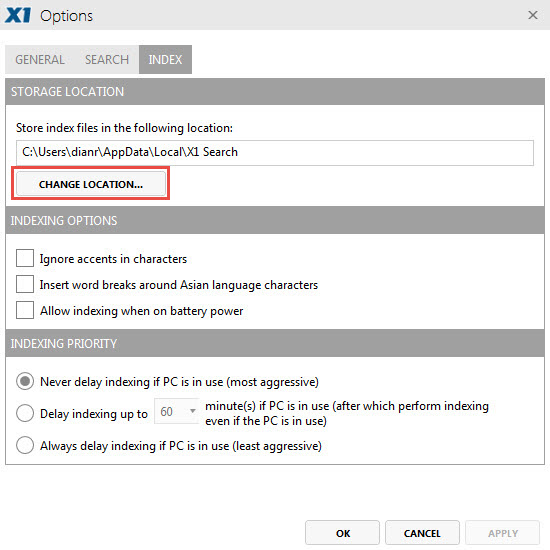
2. Select the 'Index' tab and then 'Change Location':
3\. With the folder structure, select a new location to store your X1 Search index, or click ‘Make New Folder’ to indicate a new location.
Use this dialog box to navigate to the new folder location for your X1 Search program and click the **\[OK\]** button.
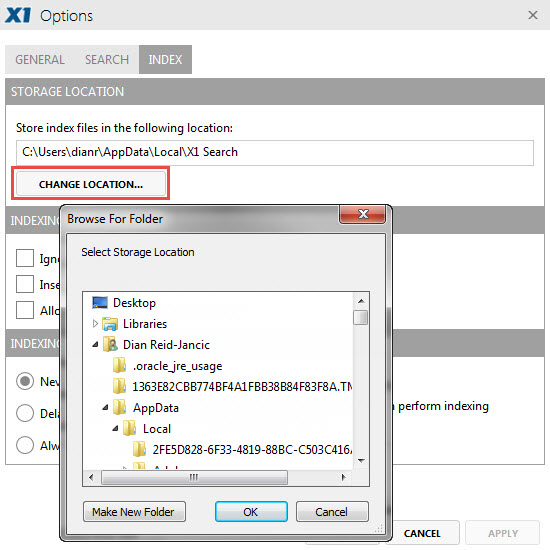
If you want to create a new folder for the program, first navigate to the Parent Folder for the new folder you want to create; then select the **\[Make New Folder\]** button and create a new name for the folder when prompted by Windows.
5\. Once you select a new location for your X1 Search Directory, click ‘Ok’, displaying a popup window:
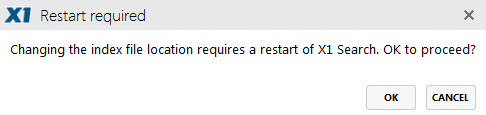
6. Choose **\[OK\]** to commit these changes and re-start X1 Search. Click **\[Cancel\]** to abort the changes.
*Please note: As with any application, you should avoid storing the X1 Search Directory on your desktop.*
- [X1 Search](https://x1support.x1.com/knowledge/x1-search?hsLang=en#main-content)
- [Troubleshooting](https://x1support.x1.com/knowledge/x1-search?hsLang=en#troubleshooting)
- [F.A.Q.](https://x1support.x1.com/knowledge/x1-search?hsLang=en#f-a-q)
- [Getting Started](https://x1support.x1.com/knowledge/x1-search?hsLang=en#getting-started)
- [X1 Enterprise](https://x1support.x1.com/knowledge/x1-enterprise?hsLang=en)
- [Default HubSpot Blog](https://blog.x1.com/blog)
[](https://www.x1.com)
x1.com Help Center
Copyright © 2026, X1 Discovery Inc.